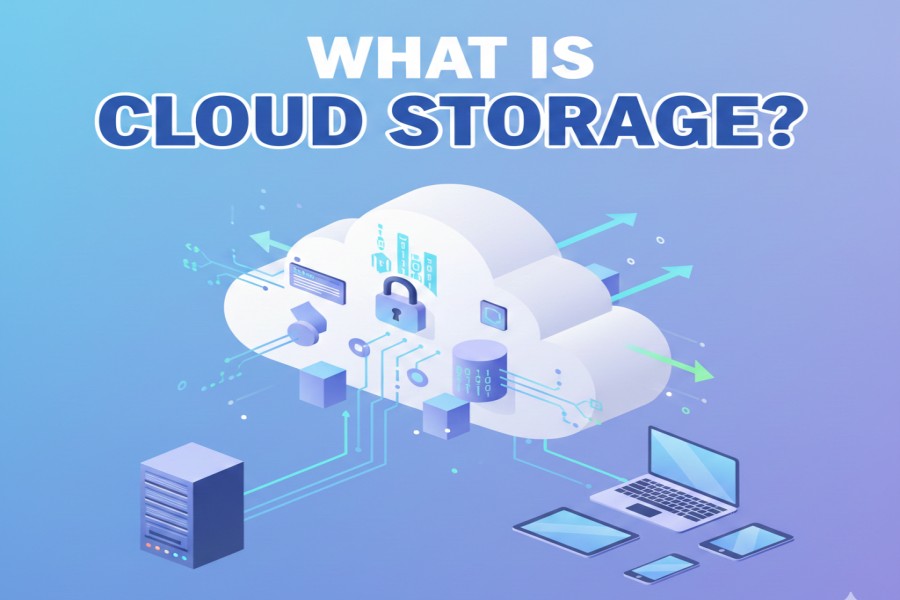
Cloud storage is an online service that lets you save files (documents, photos, videos) on remote servers instead of only on your phone or computer. You can access, sync, and share those files from any device with an internet connection. Major providers include Google Drive, OneDrive, iCloud and Dropbox, and most offer free tiers plus paid plans for more space. Cloud storage is useful for automatic backups, team collaboration, and accessing files on the go; reputable providers protect data with encryption and account controls.
What You Will Learn in this Article:
- What is cloud storage?
- How cloud storage works
- Types of Cloud Storage
- Advantages of cloud storage
- Disadvantages of cloud storage
- Use cases of cloud storage
- Major cloud storage providers (Google Drive, iCloud, OneDrive, Dropbox)
- Cloud storage safety tips
What is Cloud Storage?
Cloud storage means saving files and data on remote computers (servers) instead of on your own device. These servers are run by companies and you use the Internet to send and get your files. In other words, your photos, documents, and other data live “in the cloud” – on servers in data centers – rather than just on your phone or computer. Because the cloud is accessible over the Internet, you can retrieve your data from anywhere with an Internet connection.
How Cloud Storage Works
When you upload a file to cloud storage, it is sent over the Internet to a server (a big computer) in a data center. The cloud provider often breaks your file into parts and saves it on multiple servers for safety. When you want the file later, the cloud service finds your pieces and reassembles them. You can access your files through an app or website on any device – phone, tablet, or computer – and the cloud sends your data back to you over the Internet. If you add more files, the provider can simply use more virtual servers, making the storage easy to grow.
Types of Cloud Storage
There are several models of cloud storage, each suited for different needs:
| Public Cloud | Storage provided by third-party services, accessible over the internet. | Startups and businesses needing scalability. |
| Private Cloud | Dedicated storage for a single organization, either on-premises or hosted by a provider. | Companies handling sensitive data. |
| Hybrid Cloud | Combines public and private cloud storage for flexibility and security. | Businesses needing both secure and scalable options. |
| Multicloud | Uses multiple cloud services from different providers to enhance performance and reliability. | Enterprises looking to avoid vendor lock-in. |
Advantages of Cloud Storage
Cloud storage has many benefits over keeping data only on one device. For example:
- Access from anywhere: You can open your files from any Internet-connected device, not just your own phone or home computer. If you save a photo or homework in the cloud, you can later view it on a school computer, a tablet, or a friend’s phone.
- Saves device space: Storing things in the cloud frees up storage on your own device. This is helpful if your phone or laptop is full of photos and videos. You can keep just a few files locally and leave the rest in the cloud.
- Scalable storage: If you need more space, you can usually get it instantly by upgrading your plan, instead of buying a new hard drive.
- Easy sharing and collaboration: Cloud services make sharing files simple. You can share a photo album or document with friends or family by sending a link, without using a USB stick. Many services (like Google Drive and Dropbox) even let you work on the same document together in real time.
- Automatic backup and recovery: Your files are safely backed up on multiple cloud servers, so losing or breaking your device won’t mean losing your data. If your phone is lost or stolen, you can still recover your photos from the cloud.
Disadvantages of Cloud Storage
Cloud storage is very useful, but it has some downsides:
- Needs Internet connection: You must be online to upload or download files. If you have no Internet (for example, on a plane or if the network is down), you can’t access your cloud files. Some apps let you download files for offline use, but most actions (like syncing updates) still need a connection.
- Cost for extra storage: Free cloud plans usually have limited space. If you need a lot of storage (for example, to keep thousands of photos or videos), you will likely have to pay a monthly fee. Over time these fees can add up.
- Privacy and security concerns: Your data is stored on someone else’s servers. This means you trust the cloud provider to keep it safe. If the provider has weak security or if hackers attack, your files could be at risk.
- Reliance on provider: There is a small chance the cloud service could go offline (outage) or change its terms. If the provider’s system fails temporarily, you may be unable to get your files until it’s fixed. Always keep important data backed up in more than one place if possible.
Use Cases of Cloud Storage
Cloud storage is useful in many everyday situations:
- Backing up personal files: You can upload your photos, videos, school papers, and music to the cloud so they stay safe. For example, if your phone is damaged, all your photos are still on cloud servers.
- Sharing and collaborating: Students often share class notes or group projects through cloud services. For example, a study group can work together on a presentation in Google Docs at the same time, even if each person is at home. Similarly, you can easily send large files (like a video) to friends by sharing a link instead of emailing.
- Access on multiple devices: Cloud storage lets you start a task on one device and finish on another. For instance, you could begin writing an essay on your school computer and later continue it on your home tablet without emailing the file to yourself. Your files stay in sync automatically.
- Media and entertainment: You can use cloud storage for music, videos, and games. For example, music streaming apps use cloud storage so your songs are available wherever you log in. Videos saved in the cloud can be watched from any device without carrying around a USB drive.
Major Cloud Storage Providers
Google Drive:
Google Drive is a popular cloud service by Google. It offers 15 GB of free storage shared across Google Drive, Gmail, and Google Photos.
If you need more, Google One plans start at 100 GB for $2 per month. The image below shows the Google Drive interface (notice folders like “Classroom” and “Worksheets”). Users can create or upload files here and access them from any device.
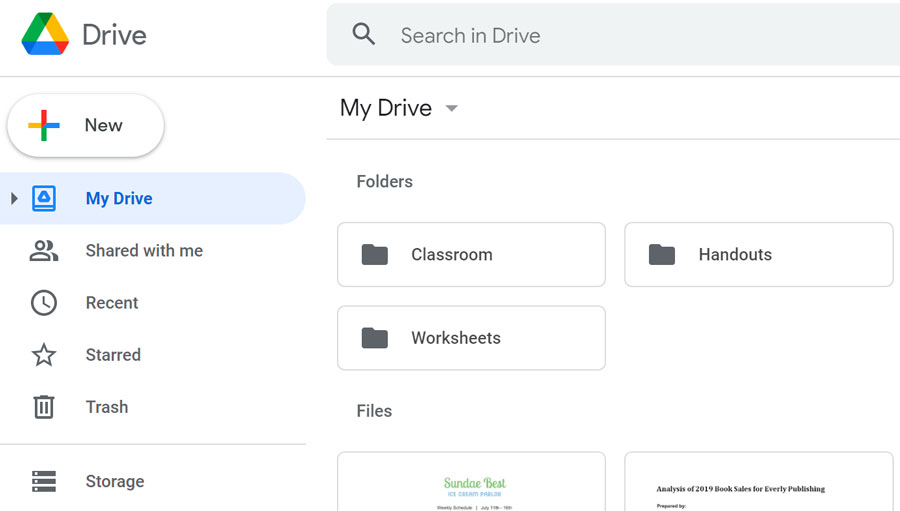
Google Drive lets you store files in folders online (the “My Drive” view shown above). It offers 15 GB free and paid plans (e.g. 100 GB for $2/month).
Apple iCloud: Apple’s iCloud gives 5 GB free to each user. Paid plans start small: for example, 50 GB for $0.99 per month in the US. This storage is often used to backup iPhones and iPads, store photos, and sync files across Apple devices.
Microsoft OneDrive: OneDrive (by Microsoft) also offers 5 GB free. You can get more via a Microsoft 365 subscription. For example, the Microsoft 365 Basic plan (about $1.99 per month) includes 100 GB of OneDrive storage. Higher plans (Microsoft 365 Personal) come with 1 TB (1000 GB) for about $9.99 per month. This is handy if you use Windows or Office apps a lot.
Dropbox: Dropbox’s free plan is 2 GB of storage. Its paid plans offer much more space. For example, the Dropbox Plus plan gives 2 TB (2000 GB) for about $9.99 per month. Dropbox is known for easy file syncing and sharing.
Cloud Storage Safety Tips
To keep your cloud data safe, follow these tips:
- Use strong passwords: Choose a long, unique password for your cloud account (avoid easy or reused passwords). Keep it secret and consider using a password manager. This makes it hard for others to guess your password.
- Enable two-factor authentication (2FA): Turn on 2FA for your cloud account if available. This requires a second code (usually sent to your phone) when logging in. Even if someone steals your password, they won’t get in without that code.
- Be careful sharing: Only share files or folders with people you trust. If possible, use links with passwords or expiration dates. Regularly review who has access to your files and revoke access if it’s no longer needed.
- Log out on shared devices: If you use a public or shared computer (like at school), always log out of your cloud accounts when done. This prevents others from opening your files.
- Update and protect your devices: Keep your computer and phone software up to date. Use a PIN, password, or fingerprint lock on your devices so if they are lost or stolen, others can’t easily reach your cloud apps.
- Enable account alerts: Many cloud services can email or notify you about unusual activity (like a login from a new device). Turn on these alerts and check them regularly to catch any suspicious access.